auto-linux-desk is a Docker image that gives scripts and AI agents a Linux desktop to work in. Launch an application, send mouse and keyboard input over HTTP or MCP, and get screenshots back. Open its noVNC page to watch the application or use it yourself.
A desktop application with no useful API usually means somebody gets stuck clicking through the same shit by hand. This image gives you a place to automate that work: its own X11 display, Openbox window manager, application processes, clipboard and screen recorder. Install the application you need, connect your client, and drive it through the same controls.
It also supplies the desktop underneath stealthy-auto-browse. The browser image adds its browser controls on top. Here, the desktop is available as a general-purpose base for Linux GUI applications.
Put an editor in the image
I’m using gedit here: open a document, enter text through the GUI and save it into a mounted directory. The base image already contains a terminal; gedit is the application being added for this walkthrough.
Save this as Dockerfile in a new directory:
FROM psyb0t/auto-linux-desk:latest
USER root
RUN apt-get update \
    && apt-get install -y --no-install-recommends gedit=44.2-1 \
    && rm -rf /var/lib/apt/lists/*
The gedit version is from the Debian Bookworm repository used by this base. Build your editor image:
docker build -t my-desk .
mkdir -p userdata recordings
Create desk.env with a long random token in place of this placeholder, and keep the file out of Git:
AUTH_TOKEN=your-token-herechmod 600 desk.env
docker run -d --name desk \
--env-file ./desk.env \
-e XVFB_RESOLUTION=1280x800 \
-p 127.0.0.1:8080:8080 \
-p 127.0.0.1:5900:5900 \
-v "$PWD/userdata:/userdata" \
-v "$PWD/recordings:/recordings" \
my-deskOpen http://localhost:5900/. That’s the live desktop. Port 8080 handles API and MCP requests. The mounted userdata directory is where the finished document will appear on your host.
The entrypoint prepares the writable directories as root, then runs the desktop as UID/GID 1000. Set PUID and PGID if your host user needs different ownership. Use dedicated directories for the mounts because startup can change ownership inside them.
Launch, write, save
In your shell, load the token and define a small helper so every request doesn’t repeat the same headers:
set -a
. ./desk.env
set +a
desk() {
  curl --fail-with-body https://ciprian.51k.eu80/ \
    -H "Authorization: Bearer $AUTH_TOKEN" \
    -H 'Content-Type: application/json' \
    --data-binary "$1"
}
Prepare an empty document and launch the editor with it:
desk '{
  "action": "run_command",
  "command": ["touch", "/userdata/notes.txt"]
}'
desk '{
  "action": "launch_app",
  "command": ["gedit", "--standalone", "/userdata/notes.txt"]
}'
desk '{"action":"desktop_list_windows"}'
The launch returns a process ID and a launch ID. The window listing lets you check that gedit has actually opened and gives you its title, class and geometry. If startup is still in progress, repeat the listing until its window appears.
Focus the editor, paste the document and save:
desk '{
  "action": "desktop_focus_window",
  "wm_class": "gedit"
}'
desk '{
  "action": "paste_text",
  "text": "Deployment notes\n\nThe editor runs inside the container.\nThis text was entered through the desktop API.\n"
}'
desk '{"action":"send_key","key":"ctrl+s"}'
desk '{
  "action": "run_command",
  "command": ["cat", "/userdata/notes.txt"]
}'
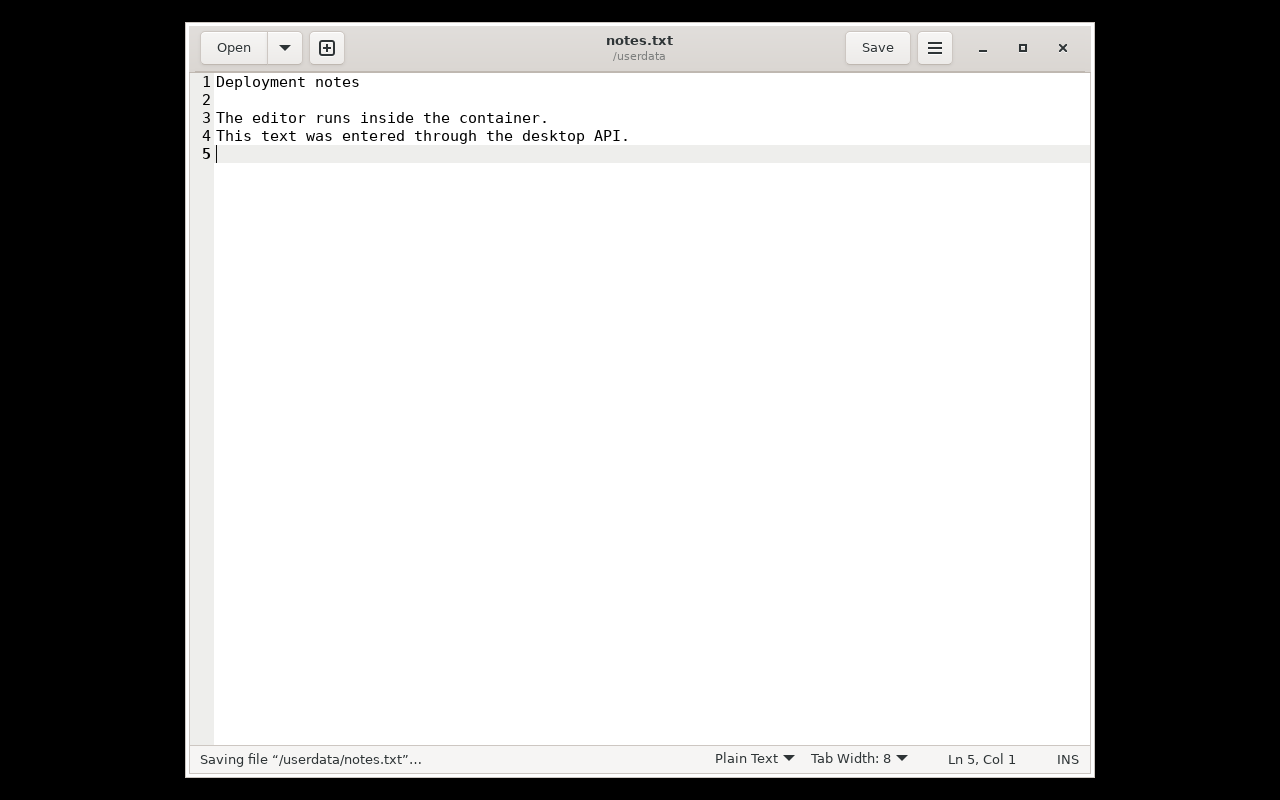
The last request reads back what the editor saved. The same file is now in your host’s userdata/notes.txt. You can inspect the screen too:
curl --fail-with-body \
  -H "Authorization: Bearer $AUTH_TOKEN" \
  -o editor.png 'https://ciprian.51k.eu80/screenshot/desktop?whLargest=1280'
This is a small task, but it uses the pieces that matter: start the application, find its window, give it input, save through its own interface and check the output. Replace gedit with the program you need and use its controls for the real job.
run_command is for commands that finish. It returns stdout, stderr and an exit code, and cleans up background children when it returns. launch_app keeps the application running and gives you logs and process tracking through list_launched. Using the wrong one for a GUI app is a good way to spend an afternoon debugging why the fucking window keeps disappearing.
Check success in every action response, then data.exit_code for commands. The HTTP endpoint can return 200 for a failed action, and successfully running a program doesn’t imply that program exited zero.
Let the agent use the same desktop
Connect an MCP client to https://ciprian.51k.eu80/mcp/ using Streamable HTTP. With the token loaded in the same shell, the Claude Code command is:
claude mcp add --transport http desk \
  https://ciprian.51k.eu80/mcp/ \
  --header "Authorization: Bearer $AUTH_TOKEN"
The agent gets tools for applications, windows, mouse input, text, clipboard, screenshots and handoff. It can perform the same editor task through those tools. The MCP screenshot tool returns the image directly, so the agent can inspect the screen between actions. Start with whLargest=512 and request more detail when the task needs it.
Window discovery matters here. An agent should identify the target window before clicking into it, particularly with several applications open. The API can focus, move, resize, maximize and close windows by ID, title, class or owning PID. desktop_keybindings reads the live Openbox shortcuts for tiling, switching windows and opening a terminal, so the client can use the desktop’s actual bindings.
HTTP and MCP share the action dispatcher and its request lock. Individual actions run one at a time. For a sequence that must stay together, run_script holds the lock across its steps. A failed step stops the sequence by default; completed actions remain completed.
Mouse paths and text entry
The input goes through XTest into the X11 session. It reaches the applications as mouse and keyboard events. You can click, double-click, right-click, drag, hold and release buttons, scroll, and send shortcuts.
Movement timing accounts for distance and target size. Paths include curves and corrections, key presses have variable gaps and overlapping holds, and wheel input arrives as timed notches. The container samples mouse and typist profiles at startup. Per-request options adjust the pace, curvature, tremor and timing when a task needs it.
For text, paste_text uses the shared clipboard and keyboard shortcuts. It can click a field first, replace its content or paste at the caret. That’s the sensible default for a document or a form. Typing a whole report one character at a time is slow as shit. Keep system_type for short edits or applications that block pasting. In a terminal, account for the terminal’s own key bindings.
The clipboard also supports HTML, PNG and file lists, which lets applications exchange more than plain text. Files must already exist inside the container. Mouse coordinates use screen pixels from the top-left corner; window geometry gives the client the position it needs before choosing a control.
Take over without fighting the agent
When a task reaches a login, a confirmation or something you want to inspect yourself, call begin_handoff and use the noVNC page. Desktop-changing actions are blocked while you work. The client can still inspect permitted status information and screenshots. Call end_handoff when you’re ready to give control back.
That coordination saves both sides from fighting over focus while you’re trying to fill in a dialog. The event API reports handoff transitions and action failures, so a client can wait for something useful instead of polling screenshots endlessly. Events are held in memory; clients can use action calls or the SSE stream at /events.
The screen recorder gives you an MP4 of the work through start_recording and stop_recording. It uses ffmpeg and writes under /recordings, which is why that directory is mounted in the run command. One recording runs at a time.
Reuse the desktop in your own image
The editor example only installs another application. A Python plugin goes further: it adds application-specific actions alongside the desktop controls. Set AUTO_LINUX_DESK_PLUGINS to the module names; the server calls each module’s register(registry) at startup.
A plugin can expose higher-level operations through actions and MCP tools, add screenshot views and report application state or health. It can also make coordinates relative to an application’s content area. The browser image uses this extension path, so browser work and general desktop work share the input, clipboard, handoff and recording code.
That is the part worth reusing. The next GUI wrapper can concentrate on its application instead of building another pile of Xvfb startup scripts, window handling and clipboard plumbing. The plugin guide has a complete module and the registration interface.
For repeatable jobs, the same actions also run as YAML scripts. Pipe a script to docker run --rm -i my-desk --script; it starts the desktop, executes the steps and returns one JSON result before exiting. Conditions, bounded loops and named outputs let a script check its work. An interactive agent and a scheduled job can therefore use the same action set.
Access to the desktop
AUTH_TOKEN protects HTTP and MCP, apart from /health. noVNC needs its own access protection if you make it reachable from another machine. The example binds both ports to loopback.
The desktop runs without sudo, and DESK_EXEC_ENABLED=false can disable direct command execution and application launching. GUI access still grants control over the programs and files in that desktop. Give it the directories needed for the task. Mounting your entire life into it defeats the point of separating the damn thing in the first place.
auto-linux-desk is AGPL-3.0-only. The manual covers the action parameters, input tuning and deployment settings when you’re ready to put your own application in it.
Get auto-linux-desk on GitHub, or read the documentation for setup, actions, MCP and plugins.