Dikciz is an Android launcher, automation runtime and AI control plane in one APK. Install it, choose it as Home, and you get a file-backed home screen you can edit on the phone, HTML widgets and complete custom apps with native Android access, Lua or JavaScript automations, a built-in AI assistant, and WebSocket, HTTP and MCP interfaces for clients outside the phone.
I built it because I wanted the home screen to be part of the system I automate, not a painted wall that another app pokes from the side. If an agent can read the phone, change a widget, run a script, inspect another app and call Android APIs, the launcher should know what happened and return a real outcome. It should not guess where a button might be and congratulate itself for tapping the wallpaper.
Install one APK and make it Home
Dikciz ships as a signed release APK. Download dikciz-launcher-vX.Y.Z.apk from the release page, or add the repository to Obtainium so later tags arrive as updates. It is not on Google Play.
adb install -r dikciz-launcher-vX.Y.Z.apkOpen it, select Dikciz as the Android Home app, tap Grant file access, approve the shared-storage request and return. First run creates /sdcard/Dikciz/. That directory holds the public home configuration, widget documents and state, apps, Lua and JavaScript scripts, policies, subscriptions, themes, libraries and logs. Chat transcripts and provider credentials stay in private app storage where another random file browser cannot rummage through them.
The release and debug packages install beside each other as Dikciz and Dikciz (debug). Updating one does not replace the other. That matters when the thing under development is also your fucking home screen.
The home screen is yours to rewrite
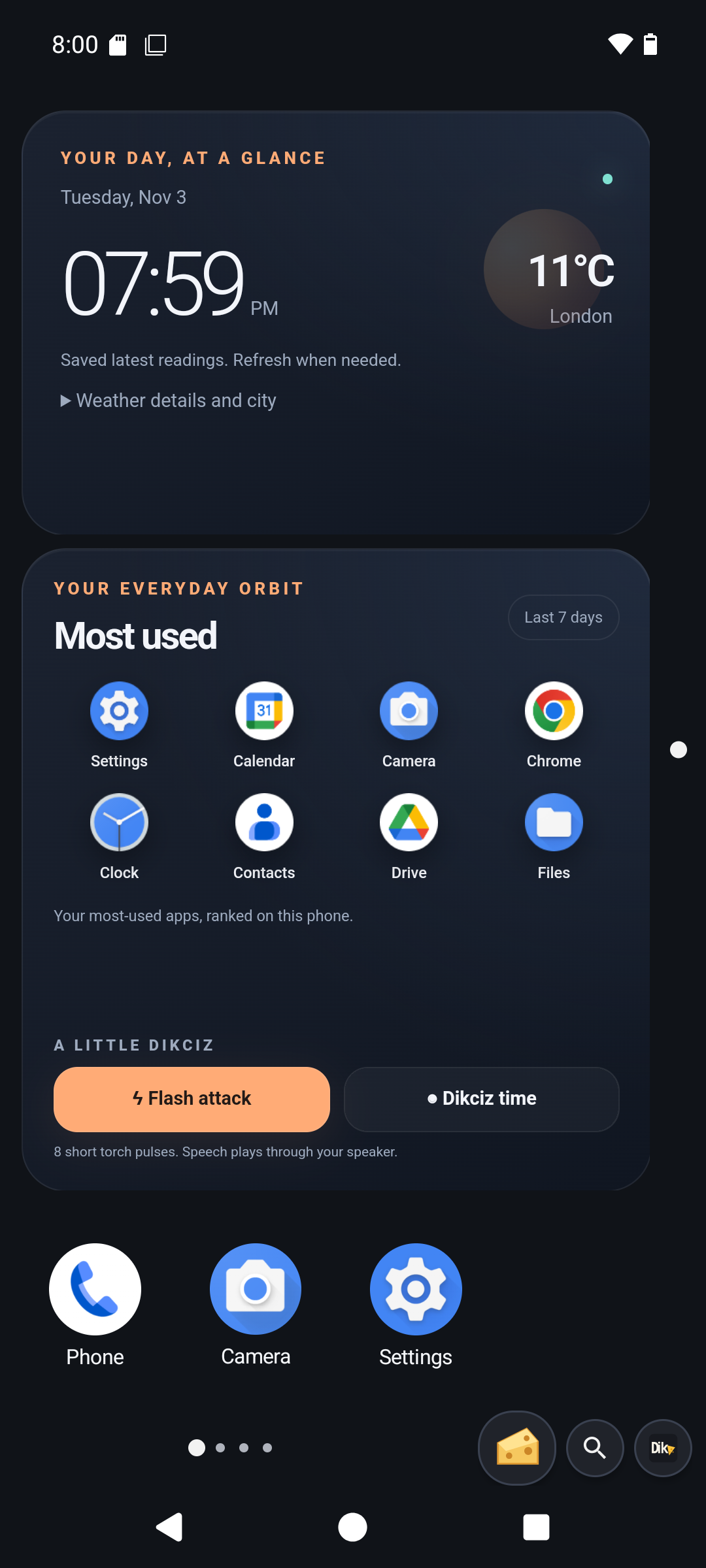
A fresh install uses an 8-column, 6-row grid with four pages: Home, Tools, Device and Goblin. Home carries time, weather, air quality, frequently used apps and native phone shortcuts. Tools has a read-only calendar agenda and voice notes. Device shows battery, network, memory, storage and whatever CPU data Android actually exposes. Goblin is where the launcher demonstrates speech, local sound, timed torch pulses, weather checks and disabled Lua examples without pretending any of that is normal.
Those pages are a starter, not firmware. Add, remove, rename and move them on a two-axis map. 1H1V is Home, 2H1V is one page to the right, and a widget address such as 2H1V-weather-card names one exact piece of the grid. Page search works by names and addresses. Shrinking the grid reflows what can fit and reports what cannot instead of quietly stacking widgets on top of each other like a landlord converting one room into six apartments.
The page can mix four kinds of thing:
- complete HTML, CSS and JavaScript widgets with their own files and persistent state
- native Android app shortcuts and groups
- real third-party Android AppWidgets with their own
AppWidgetHostView - a native dashboard for background scripts, status, logs and enable controls
Long press a widget to move, resize, edit its source, change its appearance or delete it. Save a customized HTML document to the widget library and each future insertion gets an independent copy. Updating the APK preserves an edited home. Resetting the Dikciz home is the explicit destructive act that restores the bundled pages and matching utility scripts.
A widget is a complete web document
An HTML widget is not a crippled block editor. It is a complete document with HTML, CSS, JavaScript, JSON state and private files. The editor exposes the whole thing because hiding the code behind twelve colour pickers would be insulting.
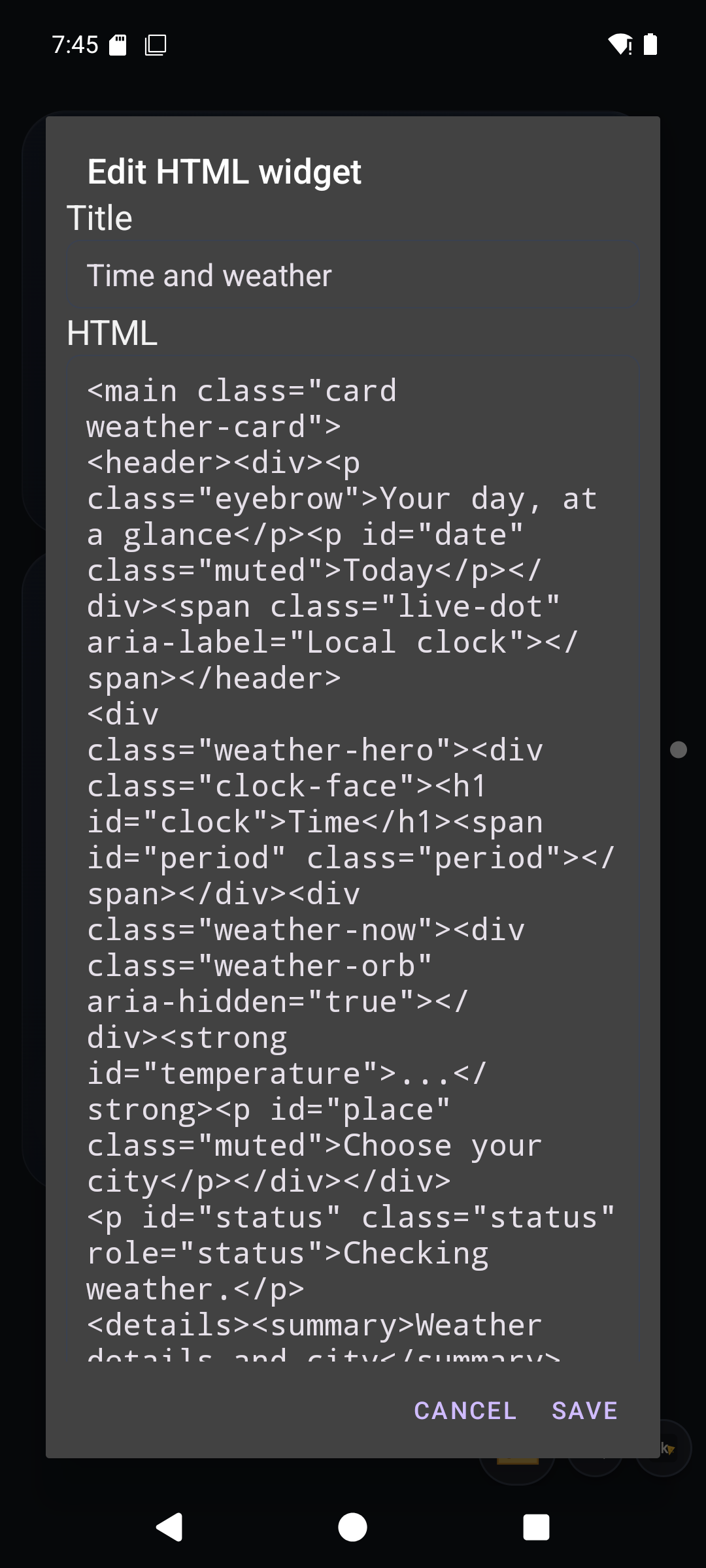
Every rendered document gets window.dikciz, window.selfWidget and the dikciz-ready event. The bridge can read launcher state, call native phone commands, dispatch typed actions, update saved widget state, patch another rendered widget, publish events and subscribe to them.
document.addEventListener("dikciz-ready", async () => {
    const state = await dikciz.command("deviceState");
    const percent = state.batteryScale > 0
        ? Math.round(state.batteryLevel * 100 / state.batteryScale)
        : null;
    document.querySelector("#battery").textContent =
        percent === null ? "Unknown" : `${percent}%`;
});
A state patch updates the existing document without throwing away its WebView. A DOM patch changes what is rendered without persisting it. The distinction matters when a sensor card updates every few seconds and you do not want the whole screen flashing like a broken fruit machine.
The bundled library uses the same public bridge. Time and weather, most-used apps, agenda, voice notes, device status, live sensors, notes, app search, notifications and the other templates are ordinary packages you can inspect and mutilate. There is no secret internal widget API reserved for the pretty screenshots.
An app does not need another fucking APK
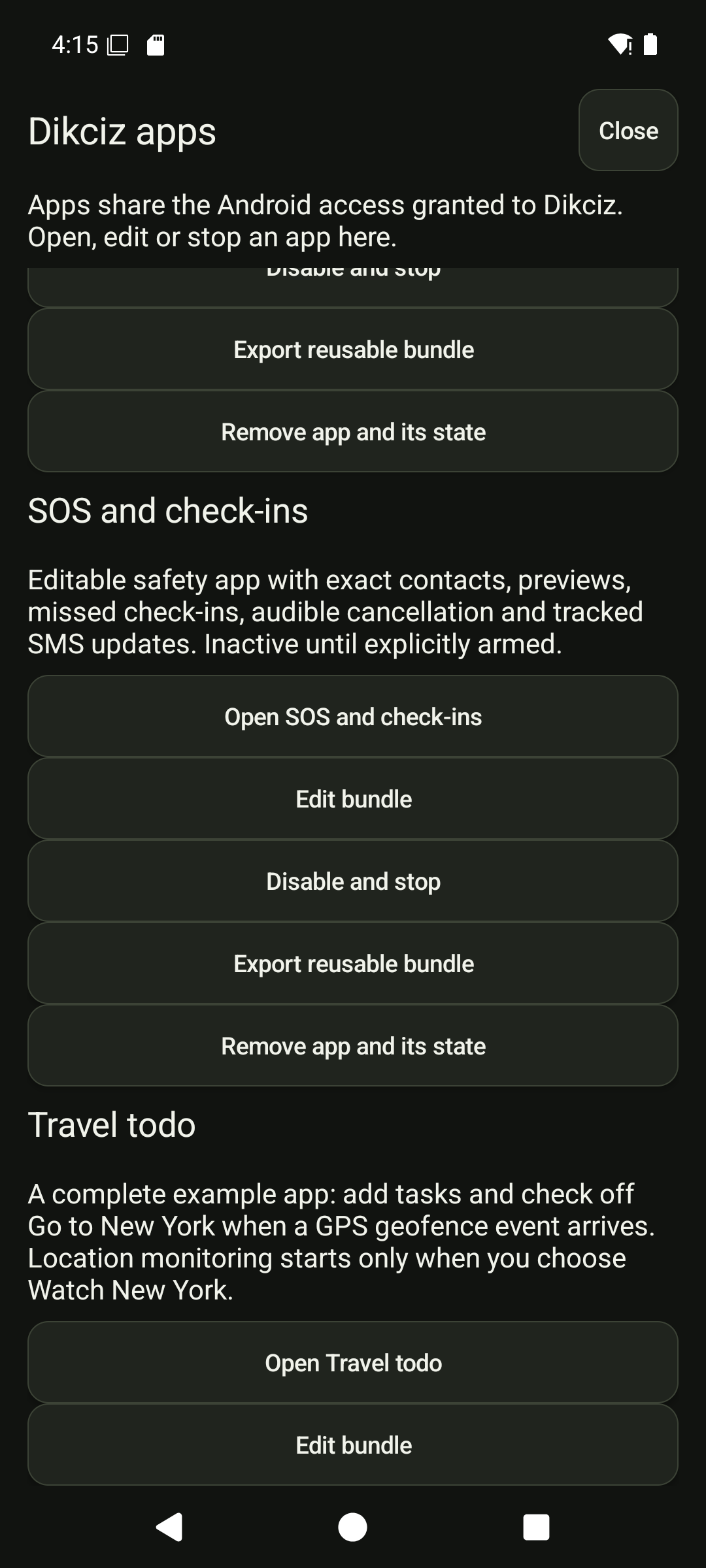
The custom-app platform takes that editable document further. Open Dikciz, then Apps, and you can open, create, edit, start, stop, export or remove a complete app. Its interface is HTML, CSS and JavaScript. Its background logic is Lua or headless JavaScript. State and private app files belong to that app ID rather than whichever home page happens to be visible.
There is no Android package build hiding behind the menu. These apps run inside Dikciz and inherit the Android access granted to Dikciz. In v0.31.0, the old per-app command restrictions and manifest approval dialogs are gone. A legacy commands array is metadata, not a permission boundary. New apps start enabled; opening a stopped app starts it. Editing source preserves its running or stopped state. Treat downloaded source as code with the launcher’s phone access, not as a harmless web page.
/sdcard/Dikciz/apps/my-app/
  app.json
  ui.html
  ui.css
  ui.js
  main.js
  state.json
  files/
Edit bundle exposes the manifest and all the source together. Use main.lua instead of main.js for a Lua backend. The interface calls window.dikciz; the backend handles events and saves explicit state. Closing the interface does not remove its subscribed background work, although a particular app can handle the hidden event by stopping an operation. Voice notes does that for recording, so closing it does not quietly leave the microphone running.
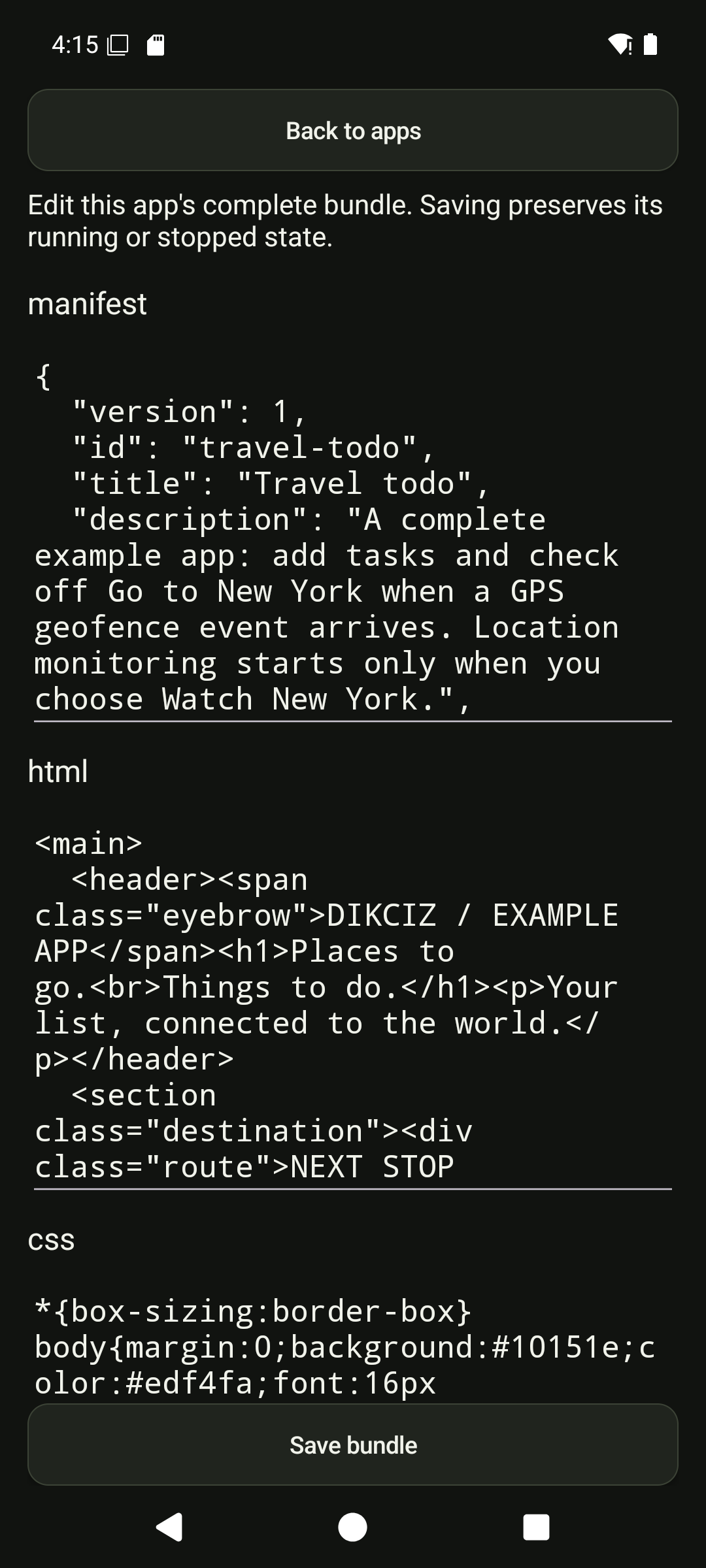
The bundled apps are Travel todo, SOS check-ins, Voice notes, Agenda and alarms, and Device status. Travel todo is the small working example: add or tick checklist items, then explicitly enable a destination watch. An accepted GPS entry event can complete its destination task while the interface is closed. The included destination is an example circle around New York, not a claim that the phone knows the legal city boundary. A custom event can complete another task through the same backend. The illustrated tutorial walks through the files, location grants, events, independent copies and cleanup.
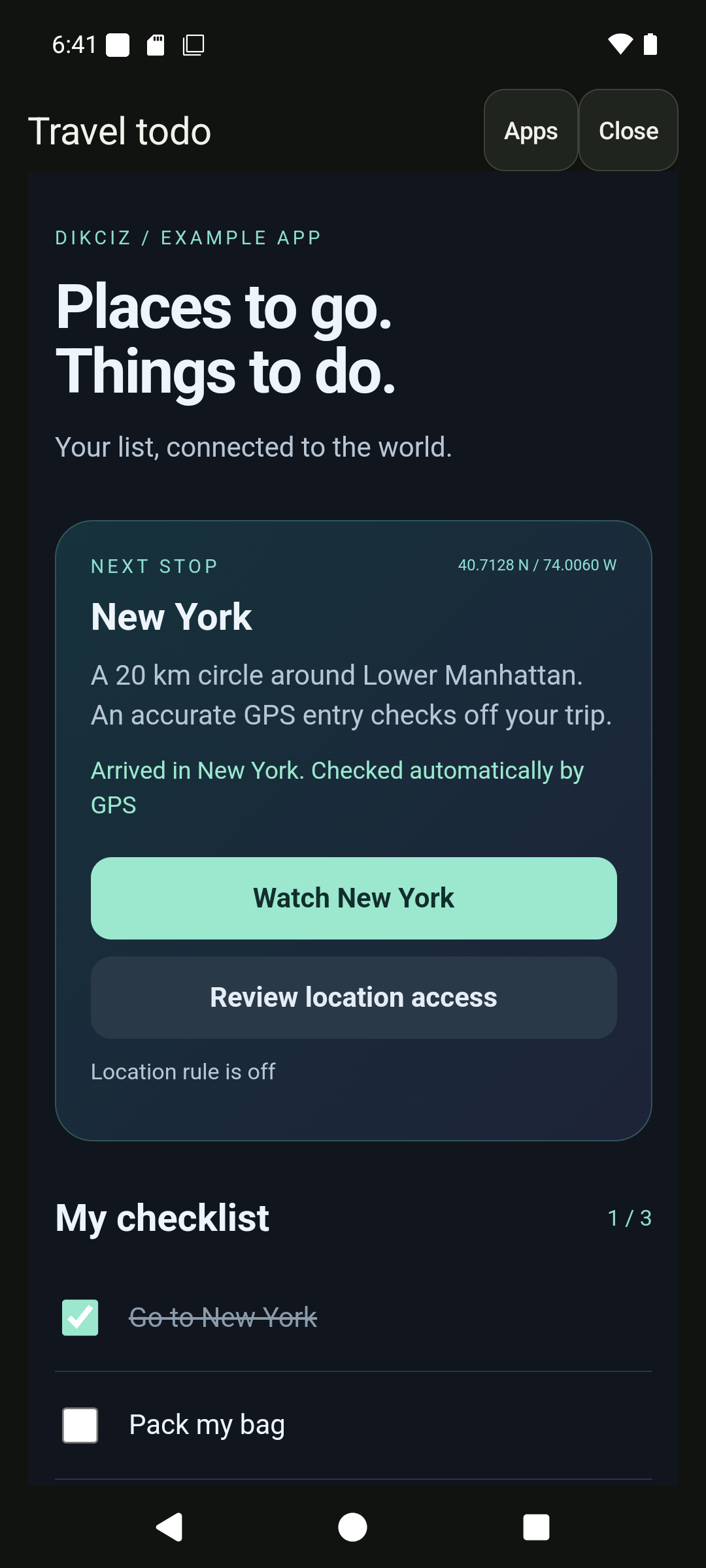
Apps can schedule persistent one-shot events and display an urgent countdown modal with a real cancellation action. A pending timer can survive a process restart in the same boot. An interrupted claimed timer or a timer left across reboot becomes needs_review instead of replaying an uncertain effect. Android can still delay alarms or reject a background start. A timer being saved is not proof that the work happened.
Export a .dikciz-app.zip to share the source, not your recordings or saved state. Install the bundle under a new app ID for an independent copy. The same app commands are available over HTTP, WebSocket, MCP and local bindings; remote app operations require owner authority, while read-only chat can inspect the allowed reads without running the backend.
Events belong to the launcher
Visible widgets handle taps and draw state. Sandboxed Lua or JavaScript scripts handle work that should continue when their page is not selected. Both languages sit on the same event bus and action executor, so a battery event can wake a script, update a saved widget and publish another event that a visible HTML document renders immediately.
function on_event(event)
  if event.type ~= "example.pipeline.request" then
    return { status = "Waiting" }
  end
  return {
    status = "Updated the widget",
    actions = {
      {
        type = "patchWidget",
        widgetAddress = "1H1V-status-card",
        values = { state = { message = event.payload.message } }
      },
      {
        type = "emitEvent",
        event = "example.pipeline.done",
        payload = { ok = true }
      }
    }
  }
end
Built-in sources cover time, alarms, battery, charging, thermal state, screen state, connectivity, Bluetooth, sensors, location, calendar, contacts, calls, incoming SMS, clipboard, notifications, media sessions, Accessibility windows, package changes and custom events. Subscriptions have explicit minimum intervals and source-specific filters. A script also needs an enabled policy listing the events it may receive and the typed actions it may return.
The Lua environment removes io, os, debug, dynamic loaders and raw Android object handles. That does not make an enabled script harmless. Enabled scripts can call ordinary owner commands through context.request and context.requestJson, including files, shell, intents and semantic UI input. Enabling someone else’s script is a trust decision, not a magical safety ritual. Read the bastard first.
For standalone JavaScript, open Settings, Scripts, New JavaScript script. It saves main.js beside the script manifest, state and run-status files. The handler is synchronous onEvent(event), not Lua’s on_event(event). It has no DOM, Node.js, browser timers or fetch; use subscriptions and phone commands instead. Globals reset between invocations, so persist the state you need. JavaScript scripts share Lua’s policies, event subscriptions, typed actions and bounded runtime. The native import/export path handles both languages.
The cheese button opens an agent
Tap the cheese beside the launcher controls and Dikciz opens its native AI assistant over the home screen. It starts at half height, expands when you want the whole display, streams Markdown, shows reasoning and tool records, and keeps running when the panel closes. A progress notification tells you whether it is thinking, writing, finding tools, reading the screen or operating the phone. Its Stop action cancels active and queued work for that conversation without pretending it can undo phone actions that already completed.
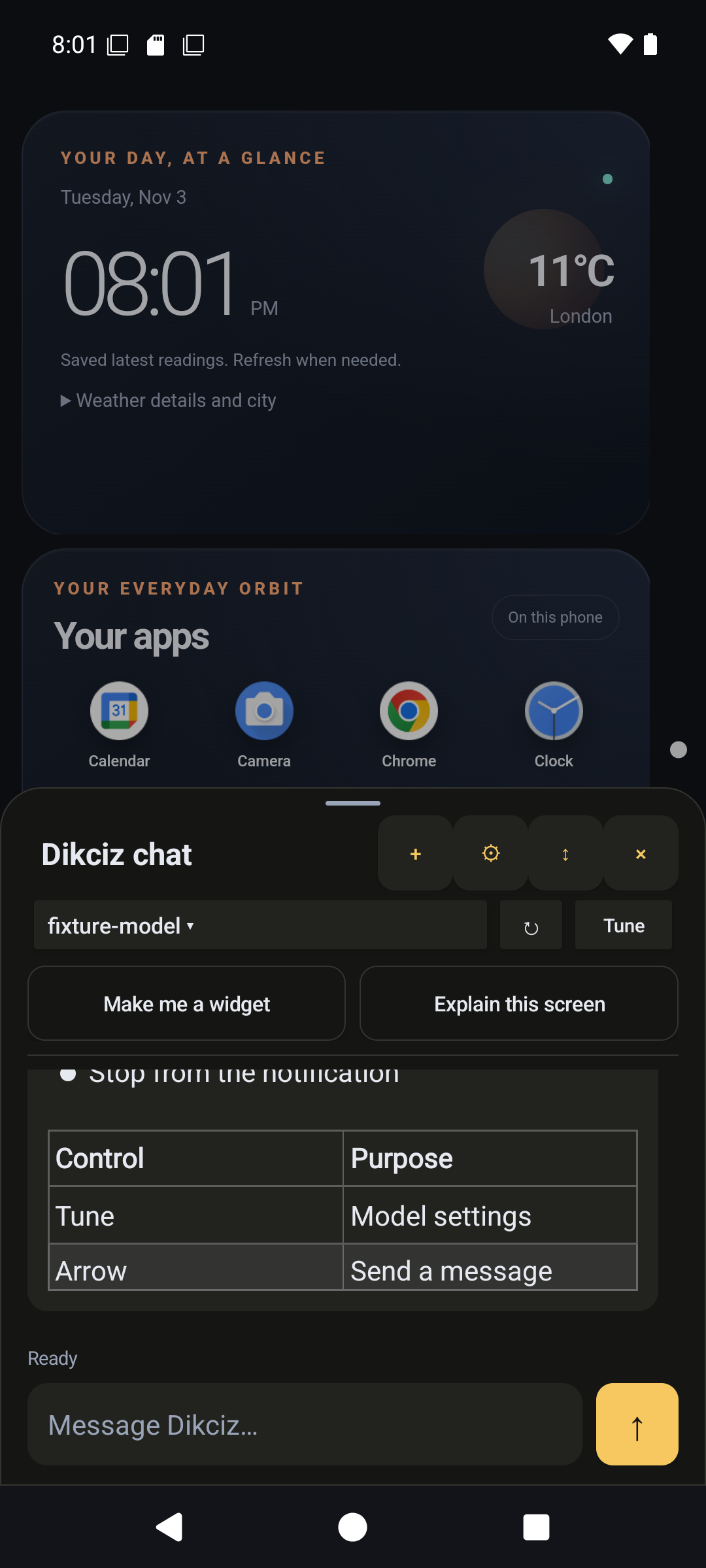
Open the chat settings, add an OpenAI, Anthropic or custom compatible provider, save the connection, create a conversation and choose a model from the provider catalogue. Provider connections are shared, but every conversation keeps its own model, context limit, output budget, reasoning level, compaction policy, timeout and read-only setting. API keys are encrypted with Android Keystore AES-GCM and omitted from every read response.
Conversations, messages, reasoning, tool calls, results, summaries and queue state live in private SQLite storage. Context trimming never deletes the transcript. If the app process dies, active work becomes interrupted and uncertain tool effects get an explicit unknown outcome. Dikciz does not replay a phone mutation because a model says it probably did not happen. Queued work resumes when the service reconnects.
The assistant has two useful shortcuts beyond ordinary chat. Make me a widget asks the selected model to build a complete document on the current page. Explain this screen hides chat, captures the visible display and Accessibility tree, and sends that turn to an image-capable model under temporary read-only access. The screenshot becomes part of the private conversation history, so pick a provider you trust rather than acting surprised after uploading your banking screen to it.
Read-only access is enforced twice. Write tools disappear from discovery, then the executor rejects a direct write attempt anyway. Arguments cannot turn the restriction off. App launches, permission prompts, shell, messaging, scripts and settings changes stay blocked. This setting restricts the embedded agent. It does not silently downgrade a separately authenticated owner client.
The assistant also has reusable read-only routines for repeatable briefings. A routine can be attached to an event subscription instead of waiting for you to type the same request every morning. Its read-only turn is enforced, not a sentence asking the model to be a good boy.
Outside agents get the same phone
The assistant is one client of Dikciz, not a separate toy implementation. External clients get the same command target over WebSocket, ordinary HTTP and Streamable HTTP MCP:
ws://127.0.0.1:19001/v1/automationfor persistent commands and live eventshttp://127.0.0.1:19002/v1/automationfor JSON commandshttp://127.0.0.1:19002/mcpfor MCP discovery, resources and typed tools
The listeners bind device loopback by default. Use ADB forwarding for a cable, or set the listen address to 0.0.0.0 for a private Wi-Fi or tailnet connection. Dikciz does not terminate TLS, so exposing those ports to the public internet would be a magnificent way to donate your phone to strangers.
Before changing the bind address, open Settings, Automation, Configure remote bearer authentication. Set an owner password, enable authentication, then create a named token for each client. A token can receive full owner access or a set of grants such as sensor reads, contacts, screen capture, UI control, app launch or SMS. Tool discovery filters what the token may see, and the shared executor checks the grant again when the call arrives. Revocation takes effect without restarting the listener.
Token records now include expiry and last use, rotation, rolling per-token request limits and exact SMS destination restrictions. The persistent command activity view records caller identity, duration, interruption and outcome. An owner token is still owner authority. These controls do not turn arbitrary app code or a leaked full-access token into a safe fucking accessory.
The bundled client keeps the bearer token in DIKCIZ_REMOTE_BEARER_TOKEN. Put it in an ignored environment file, not in a command argument that ends up in shell history.
python3 scripts/dikciz-control.py websocket controlStatus \
  --host phone.example --port 19001 --pretty
python3 scripts/dikciz-control.py mcp-tools \
  --host phone.example --port 19002 --pretty
python3 scripts/dikciz-control.py mcp dikciz_snapshot \
  --host phone.example --port 19002 --pretty
Android access still belongs to the owner
An MCP tool existing does not mean Android granted the app whatever that tool needs. Dikciz keeps one current access map covering ordinary permissions, notification access, Accessibility, device administration, unknown-source installation, background location and the other special Android settings screens. Commands check that map before doing the work.
When access is missing, the command returns permission_required with the exact requirement and recovery information. It does not pop a permission screen because some remote client tried its luck. A writable client can opt in with autoRequestPermissions: true, or call the explicit access-request tool with a requirement such as accessibility or installPackages. Dikciz then posts an Allow access notification and opens an owner review when Android allows it. The human still decides. The original operation does not secretly resume after approval, so the client reads fresh status and retries it deliberately.
That distinction saves a lot of bullshit. A notification is not a grant. Android accepting an intent is not proof the target app opened. Submitting an SMS is not a delivery receipt. Starting an APK install is not a finished installation. Dikciz keeps those states separate all the way through its result envelope.
Read-only clients cannot request permission prompts, because arranging more access is itself a write. Scoped remote tokens also cannot escape their grants by asking Android for a broader permission. Full owner access is genuinely full owner access, including shell, generic SDK calls and remote-token administration, so treat that credential like the keys to the phone rather than a cute API password.
Android is the API, not a wall
Dikciz can manipulate its own pages and widgets, but that would be a disappointingly small phone control plane. The shared native commands also cover contacts, calendars, SMS, call state, clipboard, location, notifications, installed apps, device state, media sessions, sensors, camera, video, microphone, audio playback, speech, Bluetooth, NFC, USB, Wi-Fi, USSD, torch and vibration. Each operation reports what Android actually permitted. Hardware absence, missing owner access, foreground restrictions and unsupported platform behavior come back as errors instead of fictional success.
The newer device tools go beyond single snapshots. Camera and display can stream JPEG frames, speech recognition can return partial results, and a recorded file can be sent to a saved compatible provider for transcription. That last operation is not offline merely because Dikciz runs on your phone. Split-APK installation sets and cancellation of owned pending install sessions are also explicit operations now.
The phone can do the boring errands
Open Settings, Safety, journeys and devices for the native companion controls. Geofences emit entry, exit and dwell events with accuracy checks rather than treating every drifting GPS fix as an arrival. Journeys save bounded sampled routes and show a local preview. Bluetooth RFCOMM and GATT, USB and NFC connections can stay open across commands; an optional ELM327 template uses that path for a vehicle connection. A command being available does not prove your physical adapter works, and the repository’s emulator captures are not hardware compatibility tests.
Image tools read Latin text on-device, decode barcodes, let you correct perspective and write raster PDFs. The OCR path bundles Google ML Kit SDKs and models, with their separate terms and SDK metrics disclosure in the dependency guide. Health Connect tools discover record types, request targeted grants, read history and aggregates, and write or delete records owned by Dikciz. Wi-Fi flows use Android’s approval screens for saved or local connections and local-only hotspots instead of pretending a normal app can silently reconfigure the radio.
SOS is itself an editable app, with its UI and message/check-in decisions under /sdcard/Dikciz/apps/sos/. Saving a contact plan does not arm it. Preview, arm or trigger it explicitly; pending messages have a visible cancellation countdown, a pinned cancel action, notification fallback, sound, vibration and offline spoken warnings when Android permits them. Interrupted runs need review, and cancelling cannot recall an SMS already submitted. This is an owner automation, not a guaranteed emergency service. Test it before trusting it, and do not confuse submission with delivery.
The visual automation editor adds payload conditions, cooldowns and bounded actions, with a Lua simulation path that does not produce Android effects. Device and app resources have visible pause and cleanup controls. The model is not the only way to inspect what is still running.
Turn on Dikciz in Android Accessibility settings and clients can request a bounded semantic tree for the active app, act on a node from that snapshot, perform a bounded gesture or use a supported global action. App launching is checked too. A launched result means Dikciz observed the target holding the active window, not merely that Android accepted an intent and wandered off.
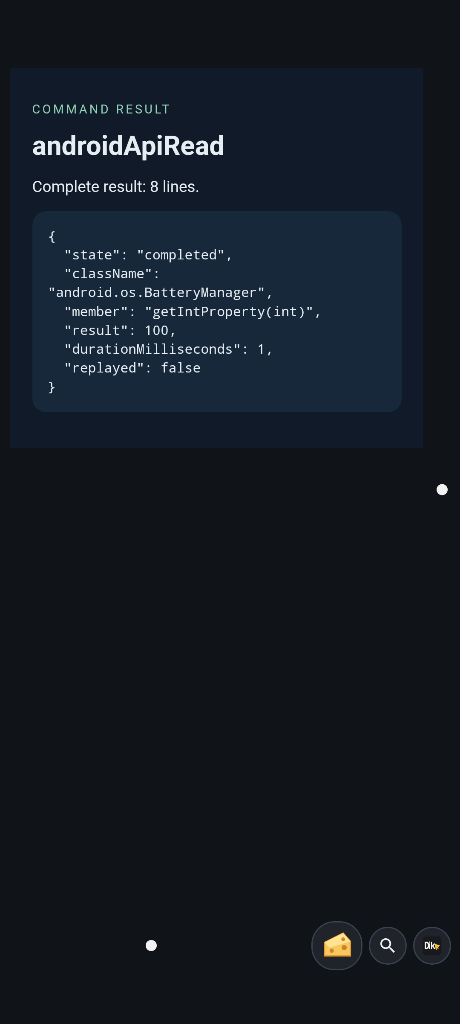
When the dedicated commands are not enough, the public Android SDK bridge indexes the pinned API 36 signatures. Discover an exact class and overload, check whether the bridge permits it and whether the running Android version has it, then call it through MCP, HTTP, WebSocket, HTML or Lua:
{
  "type": "androidApiDiscover",
  "className": "android.os.BatteryManager",
  "query": "getIntProperty"
}
{
"type": "androidApiRead",
"className": "android.os.BatteryManager",
"member": "getIntProperty(int)",
"target": "service:batterymanager",
"arguments": [4]
}
The bridge does not expose hidden APIs, reflection, dynamic class loading, arbitrary private storage or protected credential paths. Nonprimitive results get bounded process-owned handles. Calls use exact positional types rather than guessing overloads. Read-only access uses an audited policy, not the moronic assumption that every method beginning with get must be safe.
Search before guessing
No model should receive the entire Dikciz manual with every prompt, and no client should guess tool JSON from a six-month-old blog post. The APK carries a persistent SQLite full-text index containing operating guides, public manual sections and the exact installed tool schemas. MCP, HTTP, WebSocket, HTML, Lua and native chat all use the same search service.
{
  "type": "searchQuery",
  "collection": "docs",
  "query": "custom event lua widget",
  "limit": 5,
  "offset": 0
}
Ranking uses SQLite FTS4 with weighted BM25, prefixes, reviewed aliases and bounded spelling correction. Search the tools collection and results include the installed input schema. Search docs and read the returned resource. Owner-created collections can hold explicitly submitted text without sucking contacts, messages, files and chat history into some surprise database.
The native assistant reduces that surface to five compact tools: search, discover phone schemas, call a discovered tool, list resources and read one resource. It searches for the job, reads the relevant section and calls the schema that came from the running build. That is much less stupid than asking a model to remember the argument name for a tool added yesterday.
Files remain the public contract
The native editors are convenient, but they do not trap the home in a private database. Valid changes under /sdcard/Dikciz/ are watched and applied while the launcher runs. Push a widget document over ADB, edit a Lua source file from the phone, replace a theme or update a subscription and the same validators handle it. Invalid replacements are rejected rather than half-applied.
The public tree separates source from generated state. A script has metadata, Lua or JavaScript source, saved state and a generated run-status record. HTML widgets own their document, state and files beneath their page and widget identity. Complete apps have their own directories and state. Standalone automation policies and subscriptions live separately so enabling a source file does not accidentally subscribe it to every event. Logs are bounded JSON Lines with credential-shaped values redacted before they reach disk.
There are hard limits because a launcher runs all day on a phone, not on an elastic cluster somebody else pays for. Configuration size, page count, widget count, HTML document size, outstanding native requests, result pages and retained histories are bounded. Safe mode falls back to the bundled first page when the saved home cannot load, keeps diagnostics reachable and blocks mutations until the broken configuration is fixed. Your malformed widget does not get to turn Android Home into a permanent black rectangle.
Work gets an outcome, not a shrug
A phone operation often outlives one HTTP response. APK installation waits for Android confirmation. Speech, camera and microphone can take time. Shell output arrives in chunks. Events keep happening while clients disconnect. Dikciz gives those jobs explicit lifecycles instead of returning ok when the interesting part has not happened yet.
- durable command jobs persist the submitted command and final result across disconnects and process death
- shell sessions keep bounded cursor-based output, cancellation and explicit release within the app process
- the event journal retains bounded replay with cursors, filters, visible gaps and durable named-consumer acknowledgements
- camera, microphone, audio and other process-owned sessions expose status and cleanup instead of disappearing behind one request
- idempotency keys stop a retry from blindly repeating a phone mutation
These mechanisms do not promise rollback. A timed-out Android call may still finish, an SMS already submitted does not crawl back into the modem, and stopping chat does not reverse tools that completed. The useful promise is narrower: Dikciz records what it knows, marks what it cannot know and refuses to turn uncertainty into a cheerful lie.
Back up the home, not a false promise
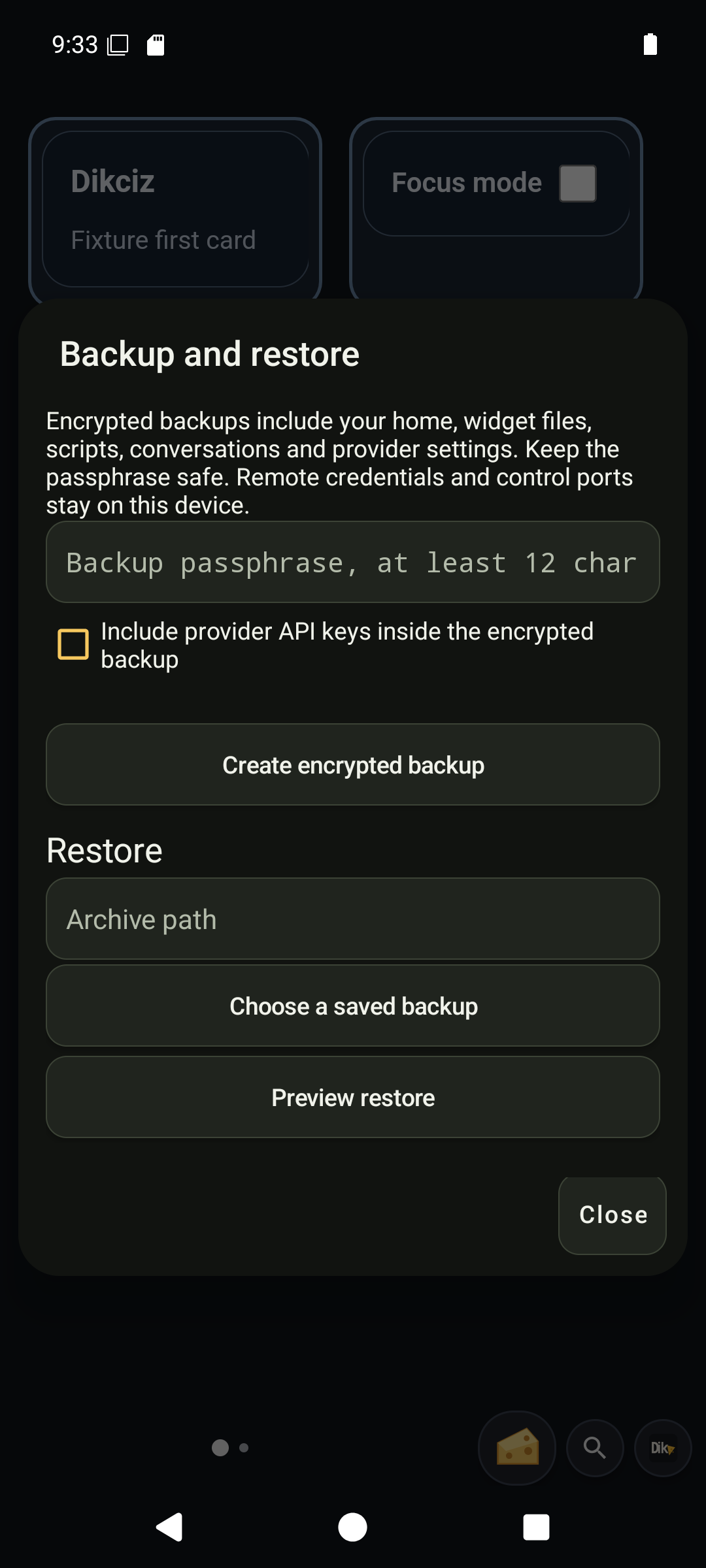
Settings, Backup and restore creates passphrase-encrypted archives of the home, widgets and their state, scripts, reusable templates, themes and chat/provider data. Provider API keys are excluded unless you explicitly include them. Preview restore first: it decrypts and validates the archive, then shows what will be replaced. Restore replaces the home and chat history, preserves the destination phone’s remote authentication and listener settings, and leaves automation disabled unless you opt to reactivate it.
Custom apps are currently excluded, including SOS state and app recordings. Their reusable exports contain source only. Back up any app state or data you need separately and stop active app work first. An encrypted archive that misses a directory is still missing that directory, however impressive the fucking cipher sounds. Android grants and installed APKs are not portable home settings either.
Development lives in a cage
I still refuse to install Android Studio. Dikciz builds and runs through Android Lab, which keeps the SDK, Gradle cache, emulator and device fixtures under the project. The Makefile pins locally built android-lab:0.16.0 and android-lab:0.16.0-emulator-api36 images.
git clone https://github.com/psyb0t/dikciz-launcher.git
cd dikciz-launcher
ANDROID_LAB_ACCEPT_ANDROID_LICENSES=yes make build
make dikciz-run
make build assembles the debug launcher. make dikciz-run boots the saved emulator, installs Dikciz, grants its lab file access, selects it as Home and forwards WebSocket and MCP/HTTP to host ports 19101 and 19102. Open the phone at:
http://127.0.0.1:61326/vnc.html?autoconnect=true&resize=scaleThe Android suite drives that real emulator, including starter pages, editing, permissions, chat, provider calls, MCP tools, Accessibility, device fixtures and recovery. Screenshots, UI dumps and logs land under .android-lab/shared/artifacts/. make dikciz-reset clears only the Dikciz app and its public files. make stop stops the lab without deleting the saved phone.
The app behavior described here was checked against the v0.31.0 source. At this check, the newest GitHub release entry with APK assets is v0.30.12; the later tags do not automatically mean an APK has been published. In particular, the no-per-app-approval behavior belongs to v0.31.0. Use the source build for that tagged behavior until its release artifact is available, rather than assuming an older download has it.
This is not a normal launcher
If you want to install a home screen, move four icons and never think about it again, Dikciz is the wrong thing. It is sideloaded, it asks you to understand the Android access you grant, and its sharpest tools can send messages, operate apps, run shell commands and change the phone because that is the fucking point.
If you want the home screen to be editable documents, event-driven code, a native AI client and a typed control plane for the Android device underneath it, one APK now owns that whole path.
If that last part sounds like what you've been missing, it's at github.com/psyb0t/dikciz-launcher.